Recently, I’ve been mentoring junior developers, offshore resources, and even answering questions about coding with friends that are just getting started. It got me thinking - what concepts cover everything one needs to be a well rounded developer?
This assumes at least some level of experience with programming/computer science and is aimed at those just starting out in industry after earning a CS degree or coming back to development after a period of absence.
While it’s tempting to start off with web projects, I feel that JavaScript and working with the challenging DOM introduce the wrong type of complexity right from the start. Beginning with an object oriented language (I’m biased towards Java or C#) helps keep a tight focus.
From browser quirks to understanding the DOM and the rapid pace at which web technology changes, programming for the web is a very challenging endeavor. It’s also the most rewarding, though. The capabilities of the web stack open up unlimited possibilities for employment and innovation.
Sep 14, 2014 · Comments
PhoneGapCordova
It started innocently enough: I built a proof-of-concept PhoneGap app that could connect to a Fitbit user’s account using OAuth. Satisfied with the results, I kept going, adding feature after feature until I had a completed app. Unfortunately, despite the relatively simple codebase that PhoneGap apps consist of, I still ended up with a monster on my hands! It was time to refactor. Through this process, I completely rethought how to separate concerns (UI, API, storage, plugins) in a PhoneGap app. Here’s the complete breakdown - I’ve
open sourced the template too!
Root
First, create a new root directory for the app (or just pull down my starter template, of course!). In this example we’ll use “app” as the App name. Within here will be everything related to the app, including code, tests, and app platform certificates:
\www: All assets of the app, including code, image icons/splash screens, and PhoneGap Build configuration files. You don’t have to name it “www” or separate the app code from tests/certificates/other metadata, but if you do, there are three benefits:
- You can zip up the folder and upload it to PhoneGap Build without unnecessary bloat being added to the compiled app.
- Should you decide to move away from the PG Build service and wish to compile the app manually using a specific platform SDK, you’re all set - PhoneGap/Cordova files are always placed into a “www” folder.
- It will automatically be ready for use with the PhoneGap Developer App, a great tool that allows you to debug your app locally on a real device. Each time you save a file from within this folder, the files get reloaded on the test device. This is a lot faster than uploading to PhoneGap Build, waiting for the app to build, then reloading it!
.cordova: PhoneGap App configuration files. This can be ignored if you don’t intend to use the PhoneGap Developer App.
\tests: All JavaScript unit tests.
\certs: All the app platform keystores and certificates that are used to digitally sign your app.
\www folder contents
index.html: This is the single page app itself. It should contain only HTML and CSS, and link to separate JavaScript files. You may have a bit of initialization code, though. For example, using KendoUI Mobile:
var app = new kendo.mobile.Application(document.body, { transition: “slide” });
// other initialization steps, such as reloading previous app state from localStorage, etc.
config.xml: The one file that PhoneGap Build uses for configuration when creating your app. Included in this are the platforms to build for, deployment preferences, icon/splash screen image references, permissions required (Internet access, location awareness, etc.), and plugins used.
icon.png: You can create many icons for each device resolution, but there must always be an icon in the root of the app code directory at 512x512 pixels.
splash.png: Similar to icon.png, if you use splash screens in your app a root image must reside in the main directory.
\icons folder: This contains all icon sets, neatly arranged into separate folders for each platform (\android, \ios, and on).
\splash folder: Exactly like the icons folder, but for splash screens.
\img folder: This contains all static images used in the app, from loading gifs to other custom pics.
\styles folder: This contains all CSS files.
\scripts folder: This contains all JavaScript code libraries. Within here, I have the following:
- \kendo folder: While technically containing both CSS and JavaScript, this is the open source Kendo UI Mobile framework used for creating a single page application.
- controller.js: The main app controller that ties all app dependencies together, including UI interaction, user management, and data storage (localStorage, databases).
- phonegapAppPlugins.js: All PhoneGap plugin helper code. This IIFE encapsulates plugin API’s here rather than incorporating them directly so that you can test/run your app in the browser (where they are not available of course). I built this with extendability in mind, making it easy to add other plugins as necessary. Check it out on GitHub.
- dataRepository.js: This encompasses any data source. In my case, it was the Fitbit API calls. Using dependency injection in controller.js, I can now use any 3rd party API that I wish or test locally by not calling any external service.
- viewModel.js: If you happen to use a MVVM style when building an app, it’s helpful to split the view model code into its own file.
- Other JavaScript files: Any other code libraries.
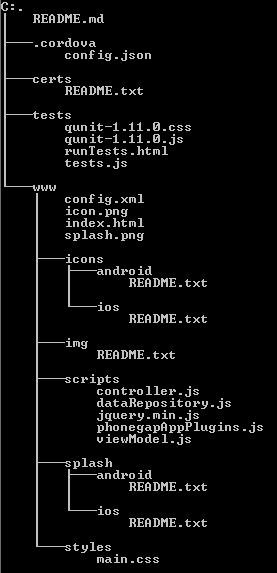
Finalized structure: (generated using ‘tree /F’ cmd)
This is how I structure my PhoneGap Build apps. If you have any ideas on how to enhance this, please let me know in the comments or submit a pull request on GitHub.